> ## Documentation Index
> Fetch the complete documentation index at: https://docs.ascn.ai/llms.txt
> Use this file to discover all available pages before exploring further.
# Telegram
> Connect the agent to Telegram: DM, group, channel or your personal account.
Telegram is the most convenient way to interact with the agent outside of the browser: get notifications, ask questions, give commands right from the messenger.
## DM with a bot
### Step 1. Create a bot via BotFather
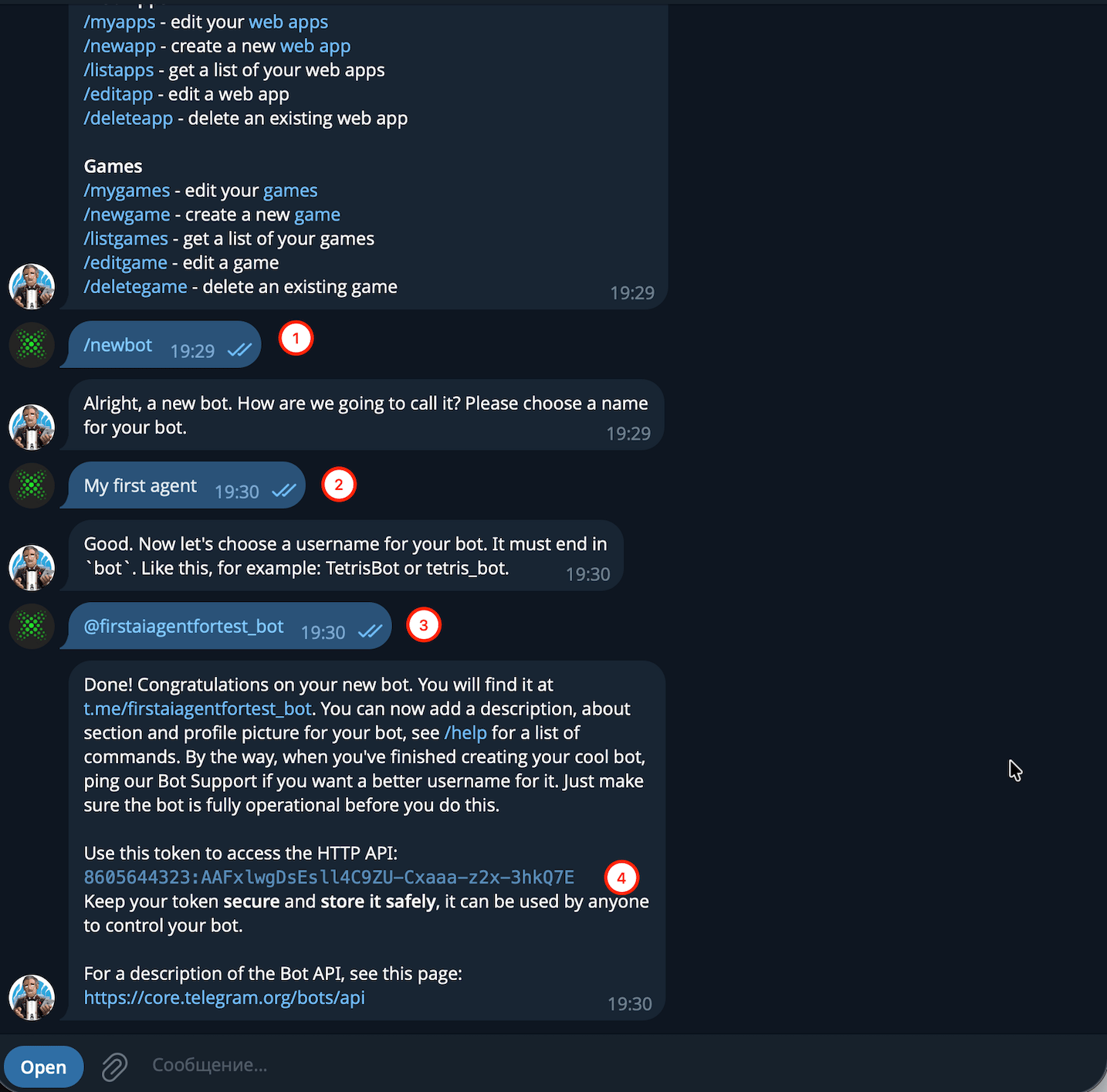
Open [@BotFather](https://t.me/BotFather) in Telegram and create a new bot. ASCN shows step-by-step guidance in the UI.
 ### Step 2. Follow the ASCN wizard
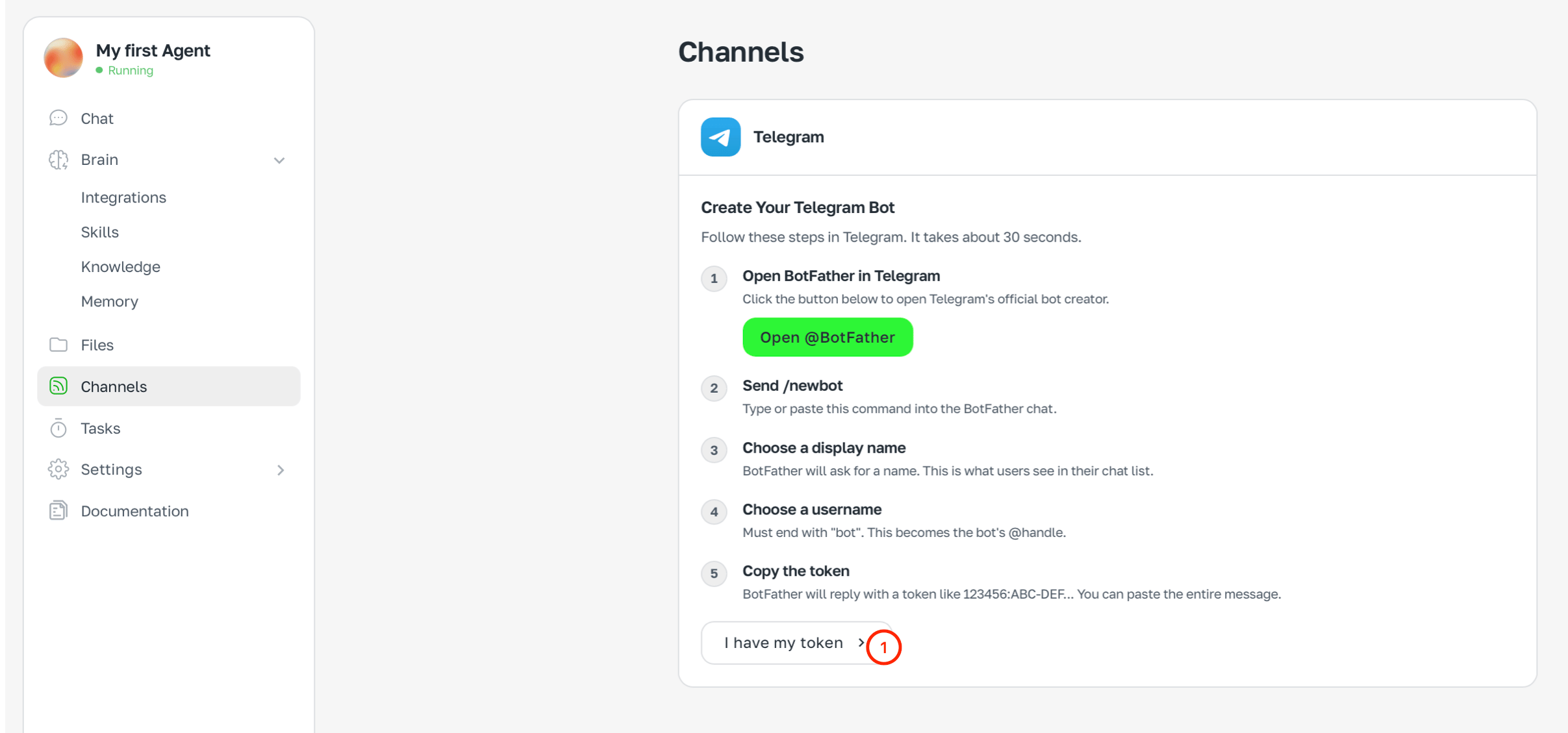
Open **Channels → Telegram**. ASCN launches a connection wizard:
1. Open BotFather in Telegram
2. Send `/newbot`
3. Pick a display name
4. Pick a username (must end with `_bot`)
5. Copy the token — BotFather will send it in chat
### Step 2. Follow the ASCN wizard
Open **Channels → Telegram**. ASCN launches a connection wizard:
1. Open BotFather in Telegram
2. Send `/newbot`
3. Pick a display name
4. Pick a username (must end with `_bot`)
5. Copy the token — BotFather will send it in chat
 ### Step 3. Paste the token
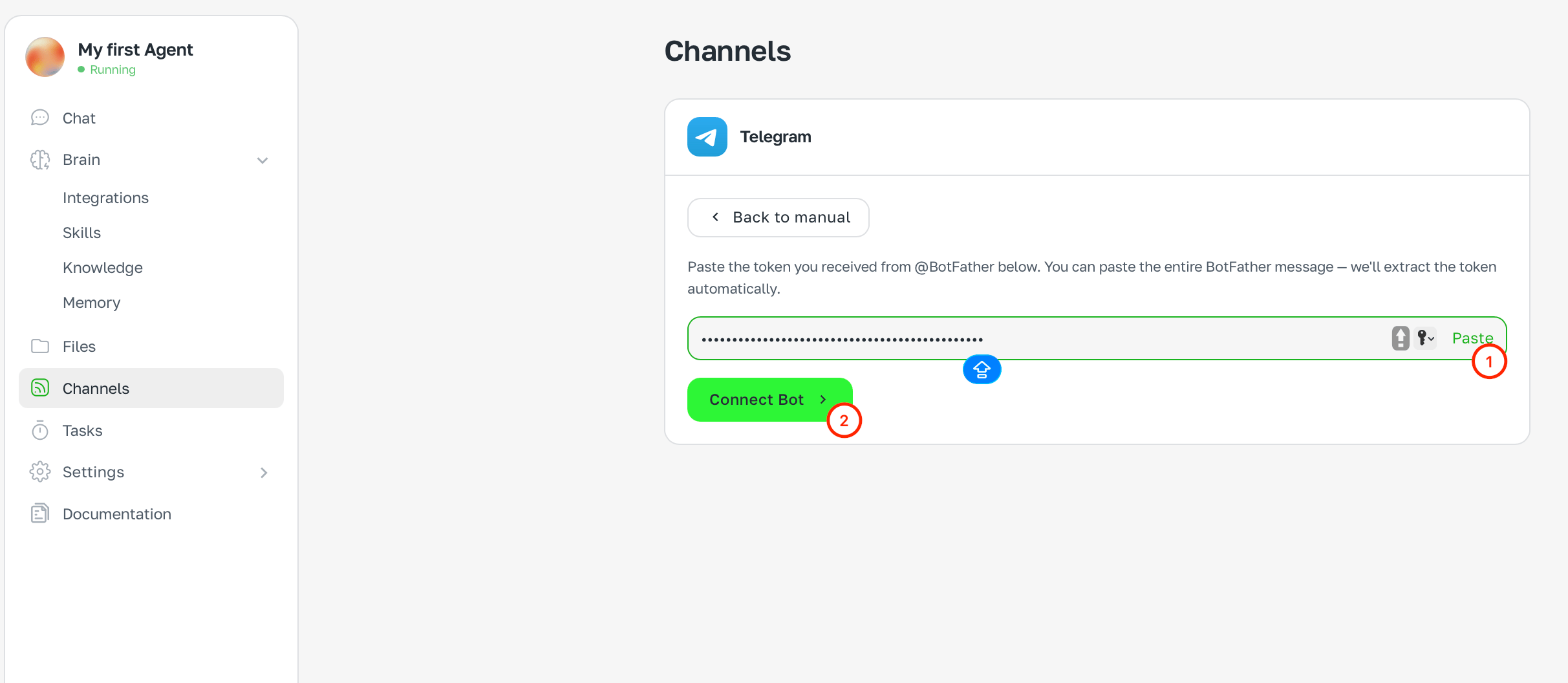
Click **I have a token →**, paste the token. You can paste the entire BotFather message — ASCN extracts the token automatically.
Click **Connect bot**.
### Step 3. Paste the token
Click **I have a token →**, paste the token. You can paste the entire BotFather message — ASCN extracts the token automatically.
Click **Connect bot**.
 ### Step 4. Verify ownership
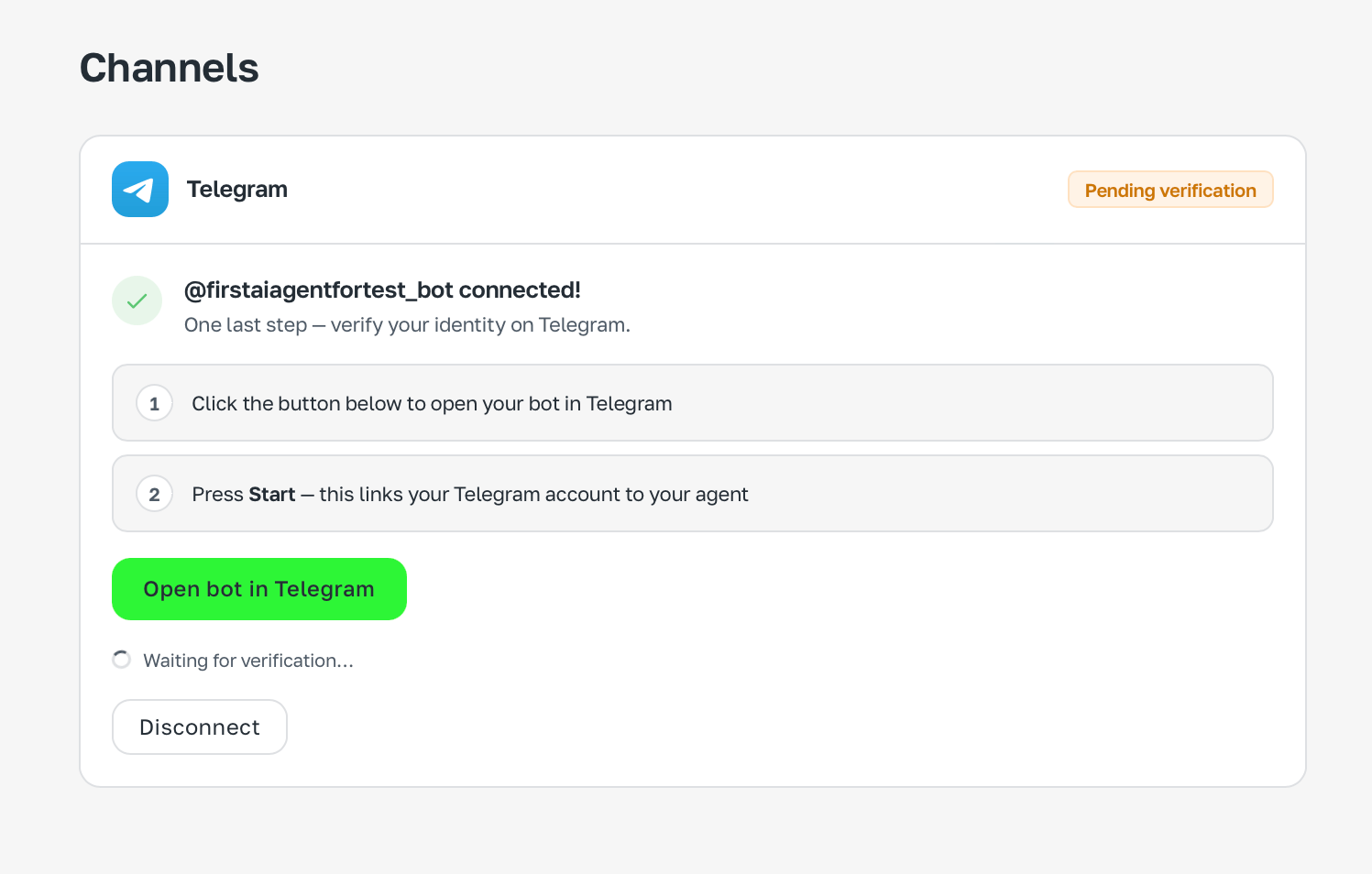
After connecting, ASCN asks to verify the bot:
1. Click **Open bot in Telegram**
2. Click **Start** in the dialog — it links your account with the agent
### Step 4. Verify ownership
After connecting, ASCN asks to verify the bot:
1. Click **Open bot in Telegram**
2. Click **Start** in the dialog — it links your account with the agent
 ### Done
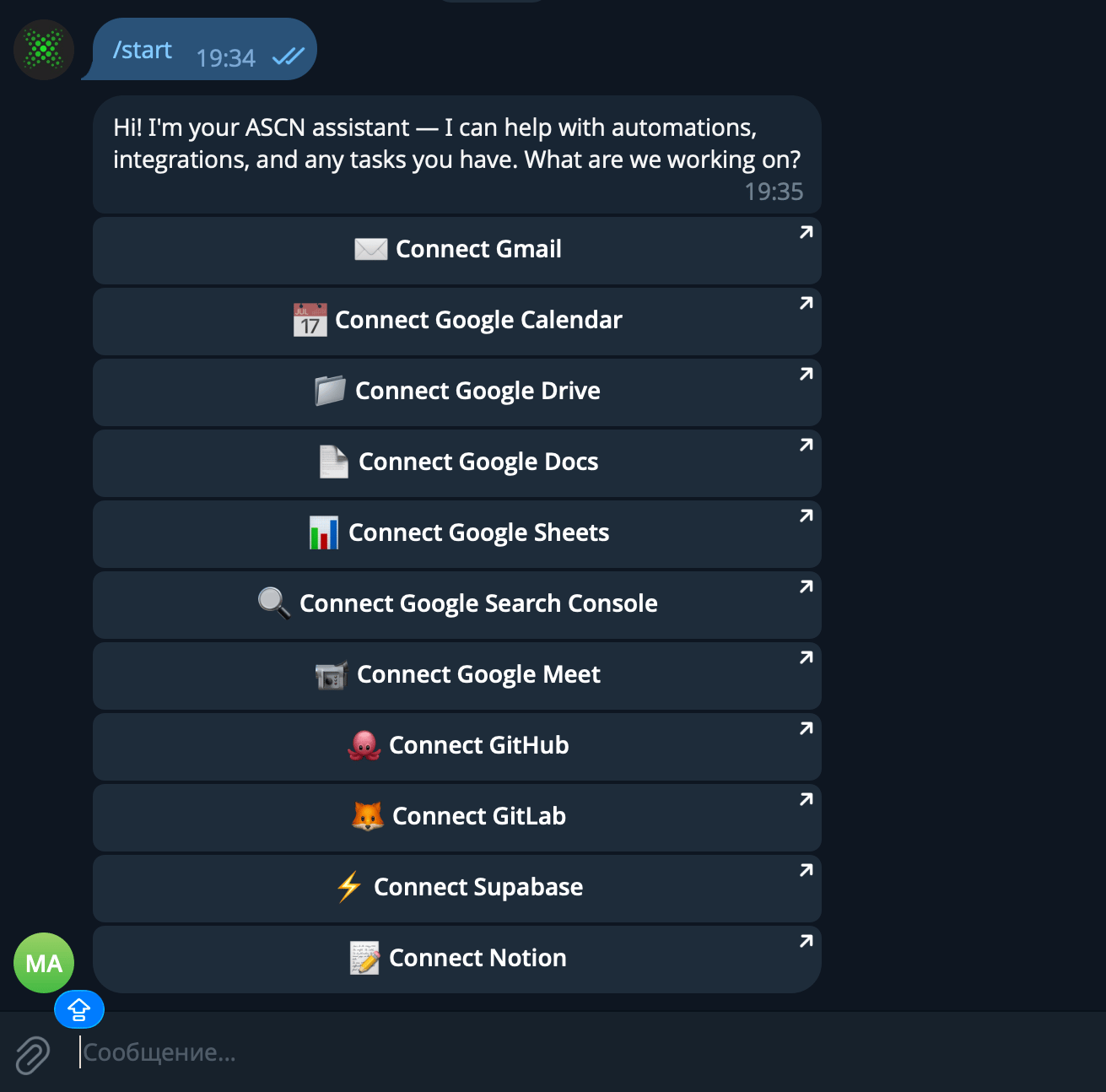
After clicking Start the bot greets you and offers to connect integrations right in Telegram.
### Done
After clicking Start the bot greets you and offers to connect integrations right in Telegram.
 ## Group or channel
You can add the agent to a Telegram group or channel — for team work or publishing notifications. Add the bot as administrator, get the chat ID (e.g. via [@RawDataBot](https://t.me/RawDataBot)) and enter it in ASCN.
## Personal account
The agent can also work via your personal Telegram account — not as a bot, but as you.
When connecting a personal account the agent gets access to your chats and can send messages on your behalf via commands or triggers. The agent does NOT auto-reply without an explicit command or configured trigger.
## What you can do via Telegram
* Ask questions and get answers
* Give commands: «send an email», «book a meeting», «what do I have today?»
* Get notifications from triggers and scheduled tasks
* Upload files and images right in chat
## Group or channel
You can add the agent to a Telegram group or channel — for team work or publishing notifications. Add the bot as administrator, get the chat ID (e.g. via [@RawDataBot](https://t.me/RawDataBot)) and enter it in ASCN.
## Personal account
The agent can also work via your personal Telegram account — not as a bot, but as you.
When connecting a personal account the agent gets access to your chats and can send messages on your behalf via commands or triggers. The agent does NOT auto-reply without an explicit command or configured trigger.
## What you can do via Telegram
* Ask questions and get answers
* Give commands: «send an email», «book a meeting», «what do I have today?»
* Get notifications from triggers and scheduled tasks
* Upload files and images right in chat